Capture What Matters.
A full-page screenshot extension for Chrome and Edge — showing only what you want.
SnapPage automatically scrolls and captures entire webpages, stitching every section into one seamless screenshot. Hide ads, cookie banners, and sticky bars — or keep only the content that matters.
- Full-Page Screenshots
- Hide & Keep
- Local processing
Your Screenshots Stay on Your Device.
Free plan needs no account.
What SnapPage is
SnapPage is a full-page screenshot extension for Google Chrome and Microsoft Edge. It captures an entire webpage as one image, and lets you remove — or keep — specific page elements before the capture is taken.
It is used by researchers, designers, developers and anyone who needs a complete, clutter-free record of a web page.
Screenshots are assembled on your own device and are never uploaded to us.
What it does
- Whole page, one image. Scrolls the page for you and stitches every screen into a single continuous capture — not just what fits on screen.
- Hide anything you don't want. Click an ad, a cookie banner, a sidebar or a sticky bar and it is hidden from the capture — no after-the-fact editing needed.
- Keep only what matters. Mark the part of a page you want to keep, and SnapPage keeps just that instead of the whole page. On Pro, your hide and keep choices are remembered for each site.
- Pages that fight back. Sticky headers, floating toolbars and 3D maps are the usual cause of smeared or duplicated strips. SnapPage handles those cases specifically.
- Pages that keep their content in an inner scroll area. Docs, chat threads and feeds often put the real content in a panel that scrolls inside the page — a normal full-page capture only gets one screen there. SnapPage detects that and captures the whole thing.
- Edit, then export. Crop, annotate, resize and export as PNG, JPEG, WebP or PDF.
What people use it for
- Research and documentation. Save long articles, papers and documentation pages as one complete image instead of a dozen overlapping screenshots.
- Design review. Record a page as a visitor sees it — with floating toolbars, chat widgets and promo banners left out of the shot.
- Support and bug reports. Show a whole page in one image, then annotate or redact the part that matters before you send it.
- Archive and compliance. Keep a dated snapshot of a page you can view, exactly as it appeared on the day you checked it.
How SnapPage is different
| Capability | SnapPage | A plain full-page capture |
|---|---|---|
| Whole page, one image | ||
| Hide ads and banners from the shot | ||
| Keep only the main content | ||
| Per-site remembered cleanups (Pro) | ||
| Local and private (no uploads) | ||
| Editor, watermark and 2× export (Pro) |
See the difference
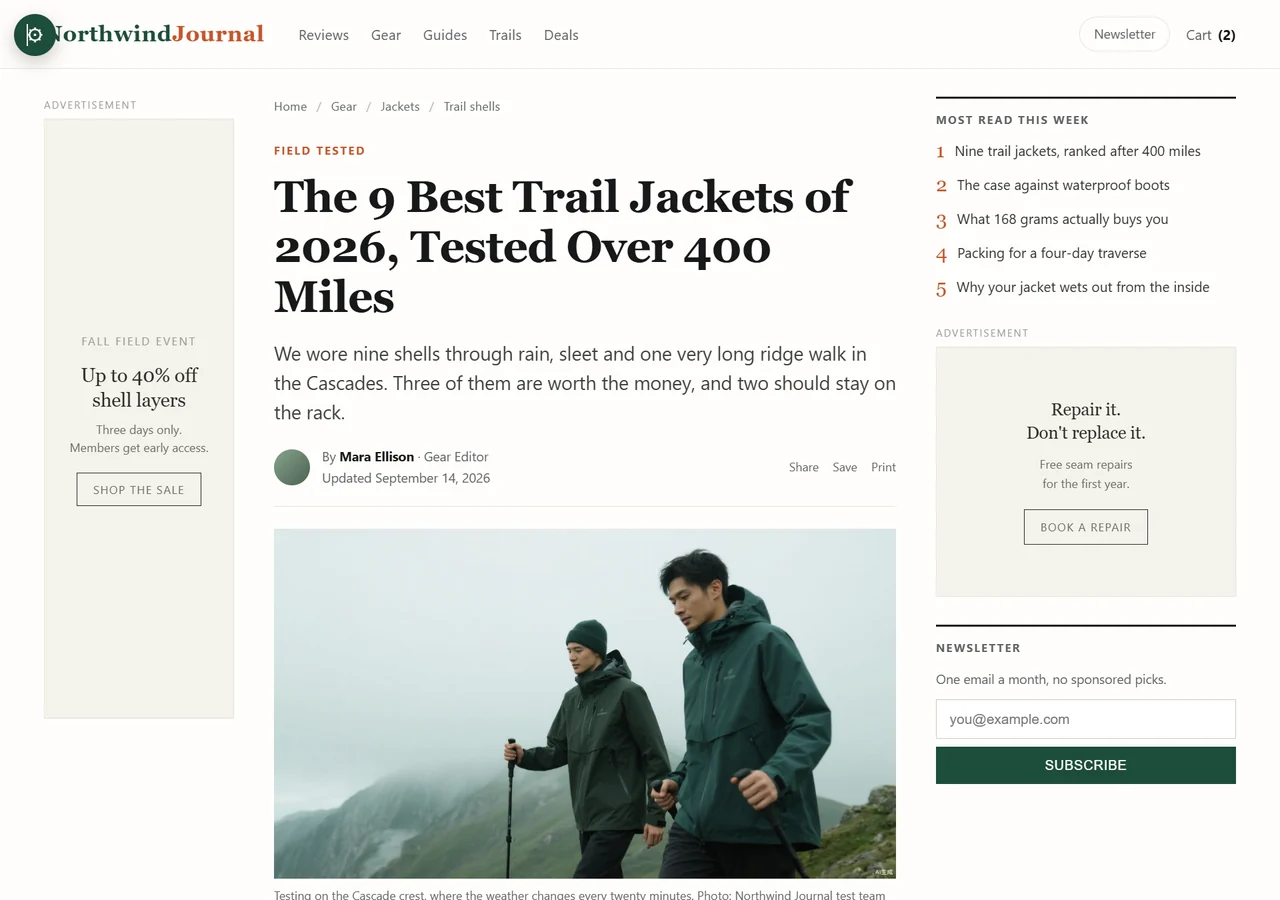 Before
 After
Before: ad slots, a sidebar and a newsletter pop-up. After: Hide & Keep removes them from the layout, so the article stands alone at full resolution.
Annotate the shot before you share it
Pro adds a built-in editor: crop, arrows, shapes, text, blur, highlight, pen, step numbers and callouts, plus your own watermark and 2× export. It all runs in your browser.
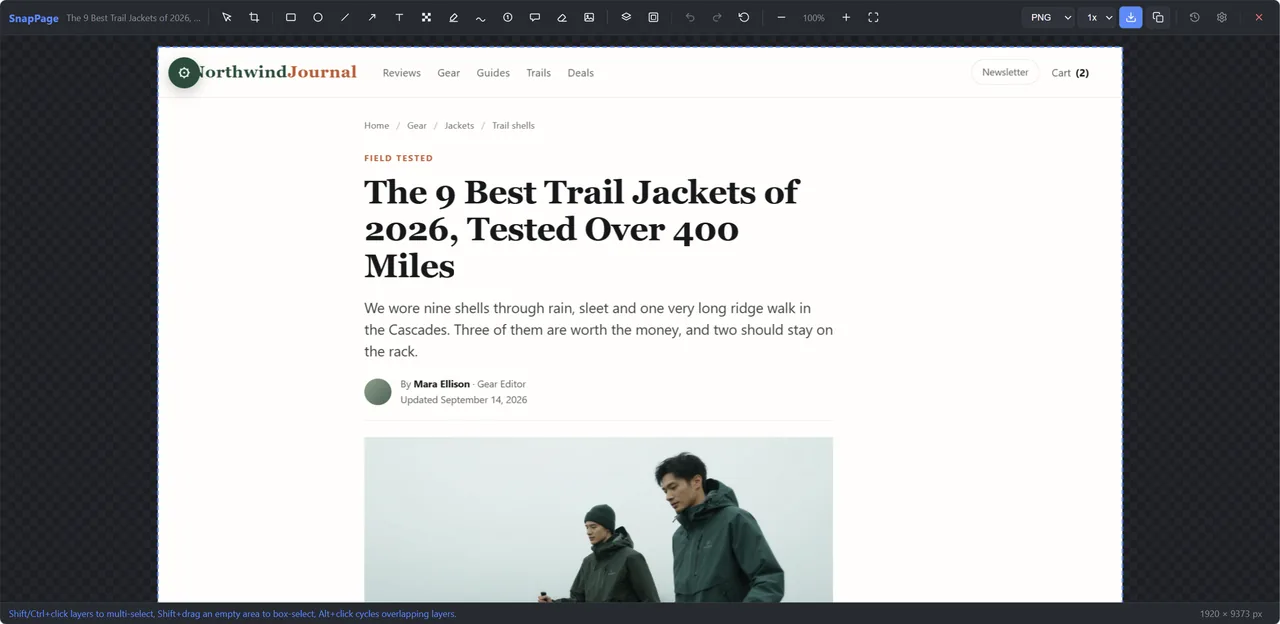
Mark up a full-page capture in the Pro editor, then copy or download it. Nothing is uploaded.
Free vs Pro
| Free | Pro$14.99 / year, excl. tax | |
|---|---|---|
| Full-Page Screenshots | Included | Included |
| Edit & annotate | — | Included |
| Capture history | Unlimited (stored locally) | Unlimited (stored locally) |
| Watermark | None | Add your own |
| Export formats | PNG, JPEG, WebP, PDF | PNG, JPEG, WebP, PDF |
| Export resolution | 1× | Up to 2× |
| Remember rules per site | — | Included |
| Hide & keep elements | This capture only | Remembered automatically |
| Settings & saved rules migration | — | Included |
| Tidy page breaks on very long pages | — | Included |
Pro is a yearly subscription — cancel any time. Every new subscription starts with a 7-day free trial: cancel before it ends and nothing is charged. Pro follows your account, not a device: sign in on each browser you capture with, and there is no cap on how many devices you use. It works offline for up to 14 days between check-ins. If it turns out not to be for you, our 14-day no-reason refund runs from your first payment.
Free plan needs no account.
Questions
What is a full-page screenshot?
A full-page screenshot is one image of an entire web page — from the top all the way down to the bottom — instead of just the part that fits on your screen. It is what you want when the thing you are documenting is longer than one screen: an article, a changelog, a long form, a whole dashboard.
How do I capture an entire webpage?
Install SnapPage, open the page you want to keep, then click the SnapPage icon to open the in-page panel. Click "Capture full page now" in that panel — or press Ctrl+Shift+Y (Cmd+Shift+Y on Mac) to capture without opening it. SnapPage scrolls the page for you, takes one capture per screen and stitches them into a single image; you never have to scroll and screenshot by hand. Very long pages are split into parts so the result stays usable.
Can I capture a page without ads and cookie banners?
Yes, and you do it before the capture rather than after: click the ad, cookie banner, newsletter popup or sticky bar you want gone, and SnapPage leaves it out of the image. On Pro those choices are remembered for that site, so the next capture there is already clean without repeating the work.
Does SnapPage upload my screenshots?
No. Captures are assembled on your own device and stored locally; they are never sent to us. The extension does contact our server to check a Pro subscription — that is why we say your screenshots stay on your device rather than claiming nothing ever touches the network.
Is SnapPage free?
Yes. The free plan covers unlimited full-page captures, Hide & Keep for the current capture, all four export formats (PNG, JPEG, WebP, PDF), local history and no watermark. Pro adds remembered per-site rules, the editor and annotations, 2× export, a custom watermark and tidy page breaks on very long pages — and it starts with a 7-day free trial.
Does Pro work offline?
Pro is verified from a signed credential stored in your browser, so the extension can check it without contacting a server. It stays valid for a 14-day grace period between check-ins, so a network problem or a server outage will not lock you out of a paid feature.
I switched computers — how do I restore Pro?
Sign in with the same account and Pro may sync over automatically. You can sign in with Google, a Microsoft account, or a one-time email code. If Pro does not appear, sign in with the email you used when buying — open the extension's Settings and click "Sign in to activate". That also works on another computer or after reinstalling your browser.
Cannot sign in either? Email our support from the address you used at checkout, and include the Creem transaction ID from your receipt. We will verify it and restore Pro for you. We deliberately do not offer an automatic lookup by transaction ID — that ID is printed on receipts and invoices, so it cannot be treated as a secret.
Pro follows your account, not a device. Sign in once in each browser you capture with — Chrome and Edge count as two browsers, so each needs its own sign-in. There is no limit on how many devices you use; if you stop using one, sign out and unbind it from the extension settings on that browser itself.
How does the 7-day free trial work?
Every new Pro subscription starts with a 7-day free trial, and nothing is charged while it runs. Cancel before it ends and your card is never charged; keep it and the first yearly payment is taken when the trial ends, then once a year after that.
You can cancel at any time from the Creem Customer Portal linked in your receipt email, or from the extension's Settings → Pro → Manage or cancel subscription. If you are only trying SnapPage out, set your own reminder — whether you receive a trial-ending notice is up to Creem, our payment provider, so a 7-day trial can end without warning.
The 14-day refund promise (see our refund policy) runs from the day of your first payment — which is the day your free trial ends. So from the moment you subscribe you are covered for 21 days in total: 7 days to cancel free of charge, then 14 days after the first charge to request a refund.
Refunds?
See the refund policy. Purchases are handled by our payment provider, who also issues refunds and invoices.
In the EU/EEA you can withdraw from this purchase within 14 days of payment, without giving a reason — use the Creem Customer Portal linked in your receipt email and follow the withdrawal options it offers. SnapPage is the seller here; Creem is our Merchant of Record and handles the money. One point the law requires us to state: SnapPage is digital content you download and start using straight away, so if you expressly ask us to begin delivery immediately and acknowledge that you lose the withdrawal right, that right ends when delivery starts.
Outside the EU/EEA we voluntarily refund any purchase within 14 days of your first payment, no reason needed. Refund requests go to Creem, our merchant of record — see the refund policy for where to find its policy. This 14-day promise is in addition to, never instead of, any right you have under your local consumer law, and your statutory withdrawal period may be longer.
If a site changes its layout, will my hidden or kept elements still work?
Saved hide and keep choices are tied to the page structure as it was when you clicked — the specific element you picked. If the site is redesigned (layout, class names, or DOM structure changes), a previously saved cleanup may stop working or apply to the wrong element. We do not guarantee compatibility after such a redesign. If a capture looks wrong after a site update, just re-hide or re-keep the element manually.